

Using STACK with Buildertrend
- Print
- DarkLight
- PDF
Using STACK with Buildertrend
- Print
- DarkLight
- PDF
Article summary
Did you find this summary helpful?
Thank you for your feedback!
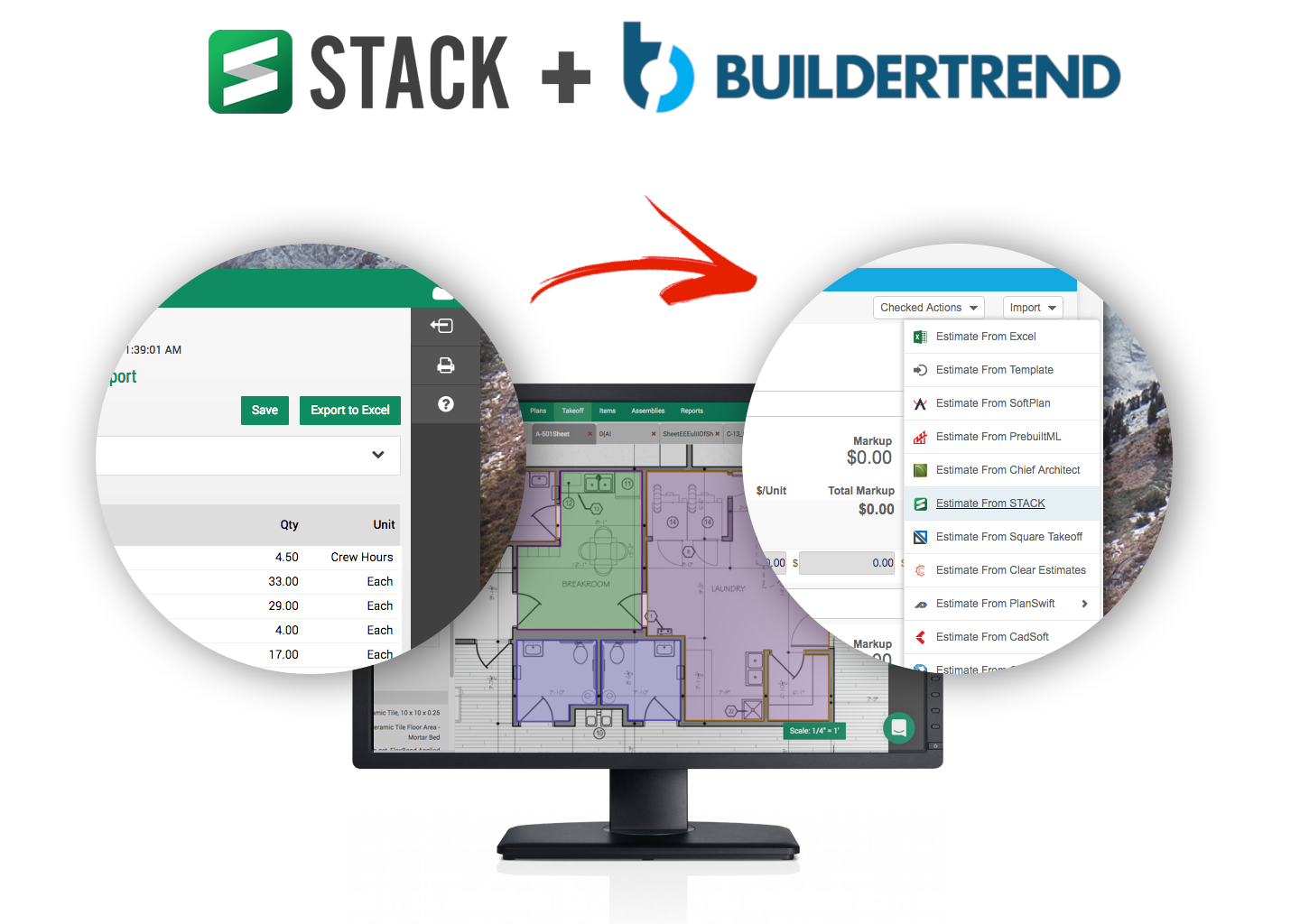
Buildertrend is a popular project communication, collaboration and documentation tool for home builders and remodelers. Export your material takeoffs from STACK and quickly import them to your Buildertrend budget.
Why export from STACK to Buildertrend?
- Track progress (10% complete, 50% complete, etc) towards specific items in your estimate
- Use your STACK estimate to generate a quote to send to your customer
- Track estimated cost vs actual cost, estimated cost vs amount billed/paid
- See www.buildertrend.com for more
Although you can export any report from STACK and open it in Buildertrend by mapping the columns correctly, the integration described here requires a STACK Pro subscription.
Prerequisites
In order for the STACK <> Buildertrend integration to work seamlessly, you'll want the Accounting Code field on your STACK items to match the accounting codes you are using in Buildertrend. You can set this up yourself or contact your STACK Account Representative for assistance in transferring your Buildertrend accounting codes to your STACK Items list.
Generate an Item Cost Report
- After completing a takeoff in STACK, open the Item Cost Report.
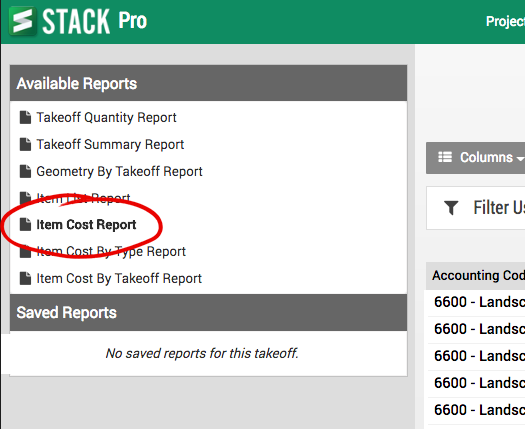
2. Make sure that the Item Cost Report is not grouped (Click on the Groupings button and make sure nothing is checked)
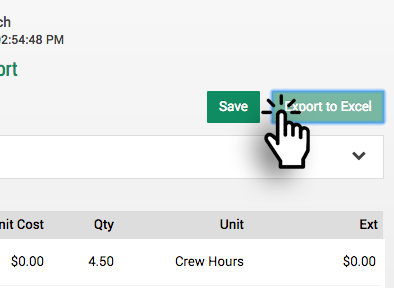
3. Export the Item Cost Report to Excel.
Import into BuilderTrend
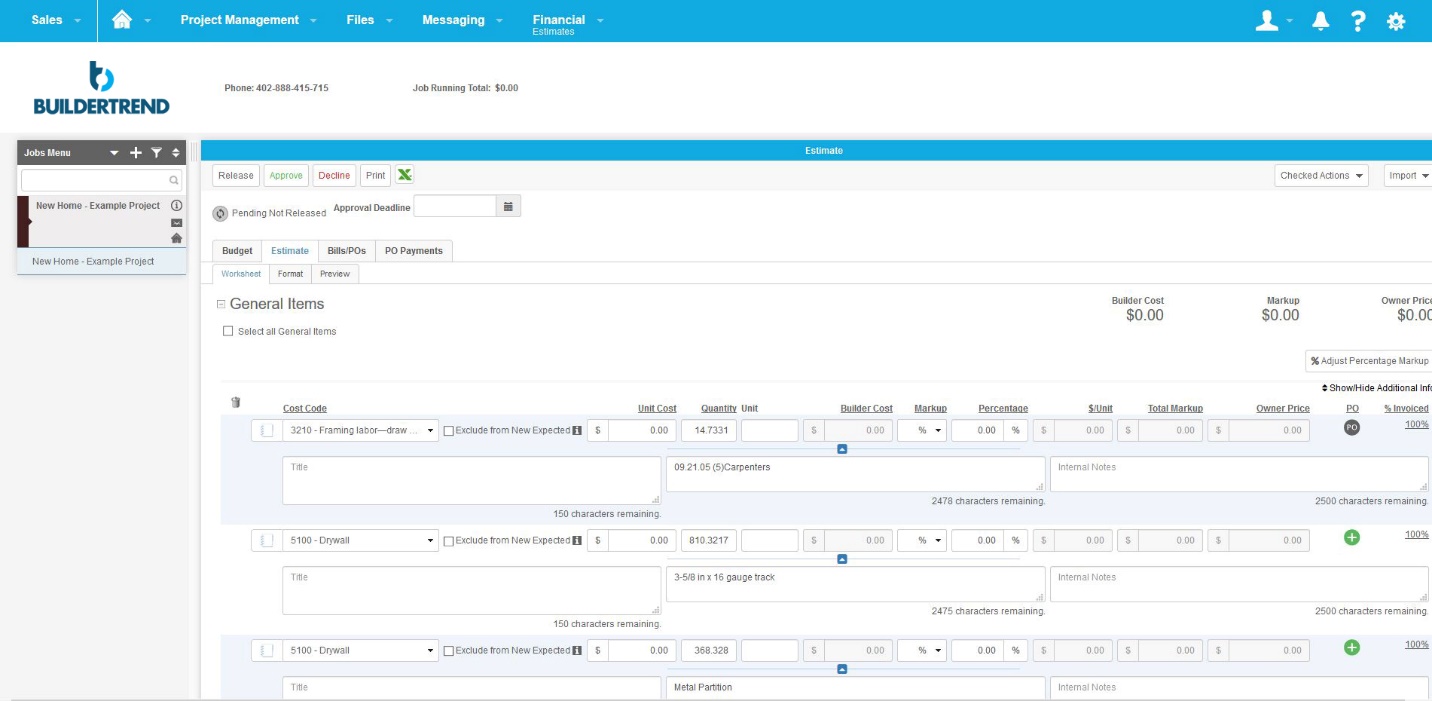
4. Open BuilderTrend and select Estimates from the Financial dropdown.
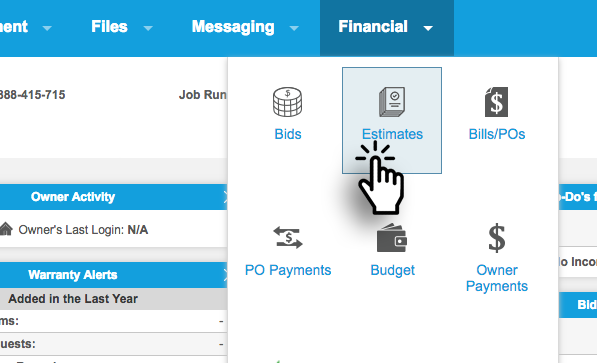
5. Import your STACK Item Cost Report into your Buildertend estimate.
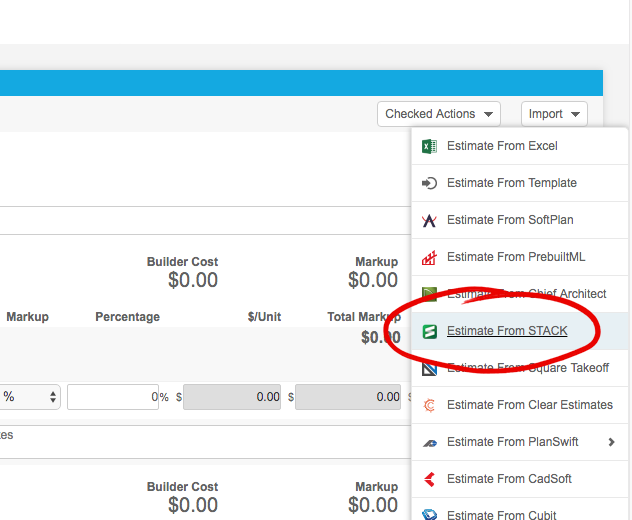
Map the columns
6. Choose the ItemCostReport.csv from your downloads folder.
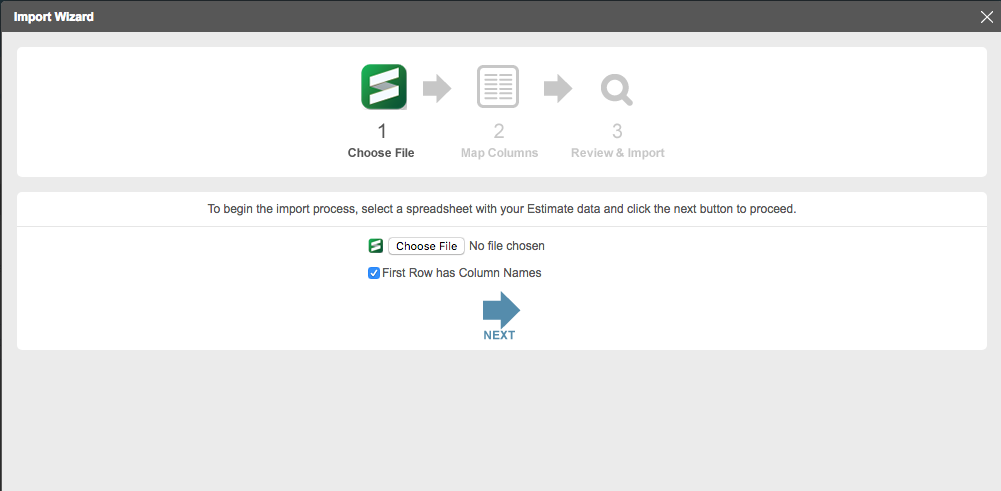
7. Map your STACK columns to match Buildertrend.
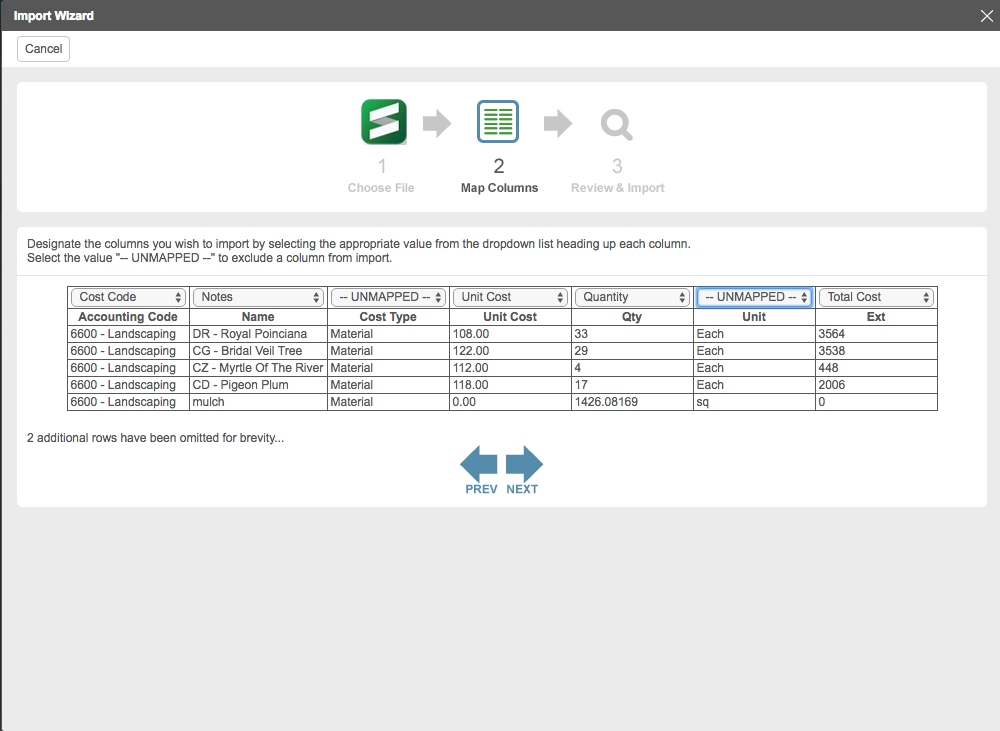
STACK Columns => Buildertrend Columns
Accounting Code => Cost Code
Name => Notes
Cost Type => Unmapped
Unit Cost => Unit Cost
Qty => Quantity
Unit => Unmapped
Ext => Total Cost
8. Check for any unmapped quantities.
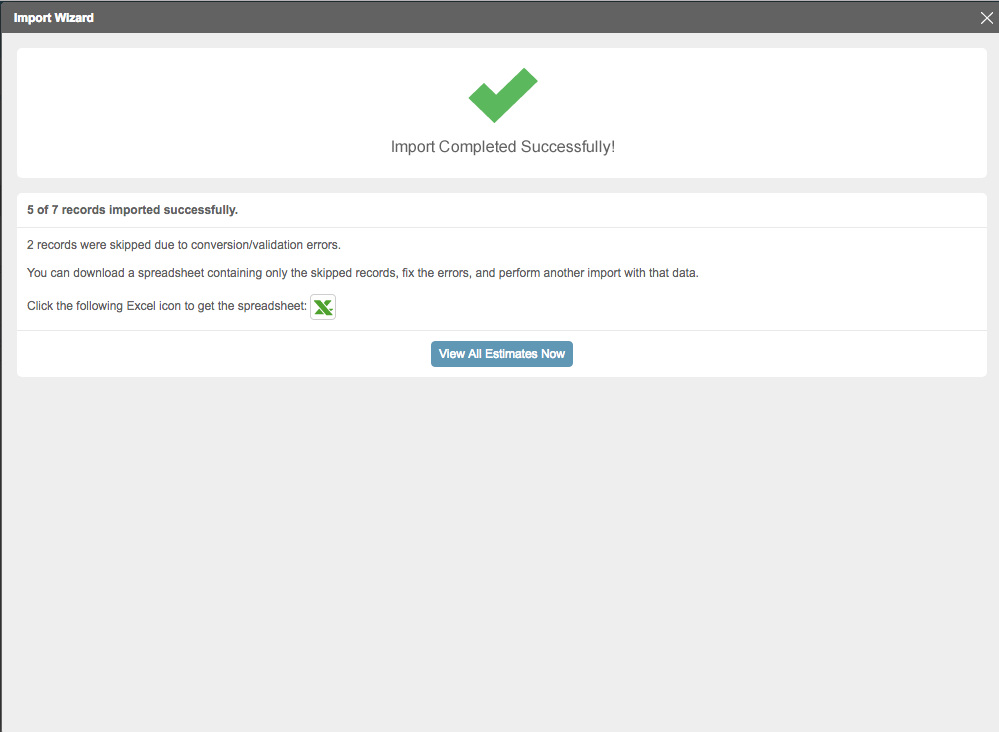
9. View your STACK quantities in Buildertrend
Frequently Asked Questions
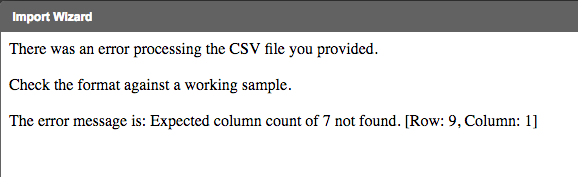
I get an error when importing my STACK Item Cost Report into Buildertrend.
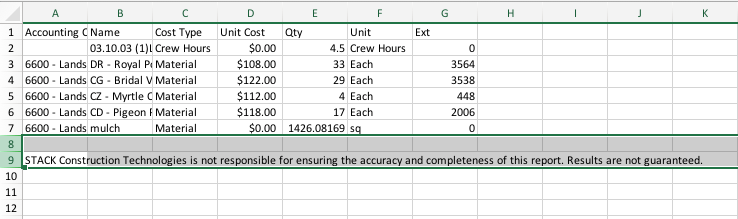
Open the csv file in Excel and delete the disclaimer message in the last row and re-save the file.
Which columns map between STACK and Buildertrend?
STACK Columns => Buildertrend Columns
Accounting Code = Cost Code
Name = Notes
Cost Type = Unmapped
Unit Cost = Unit Cost
Qty = Quantity
Unit = Unmapped
Ext = Total Cost
My STACK Ext values cause an error.
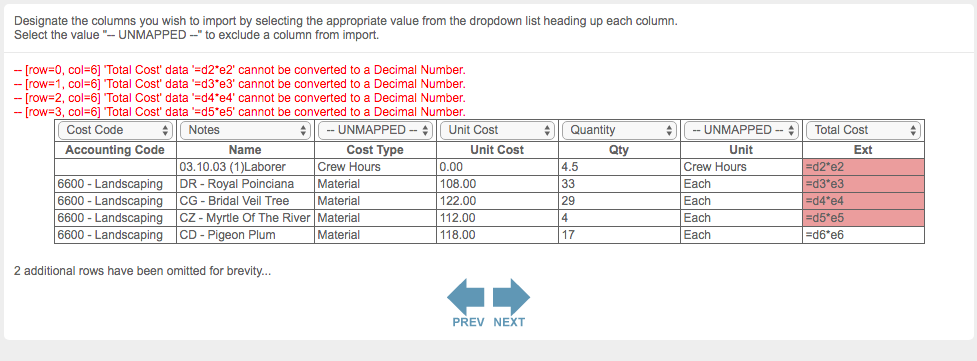
Open the csv file in Excel and and re-save. This will convert the formulas to values.
Was this article helpful?