

Export Estimate Worksheet Data to Acumatica
- Print
- DarkLight
- PDF
Export Estimate Worksheet Data to Acumatica
- Print
- DarkLight
- PDF
Article summary
Did you find this summary helpful?
Thank you for your feedback!
STACK's integration with Acumatica allows you to easily export Estimate Worksheet data from STACK to create a Project Quote or Sales Quote in Acumatica.
How It Works
First, you need to set up the connection/integration in STACK. (You only have to do this once.) Then you can export data from any STACK Estimate Worksheet to Acumatica with just a few clicks.
You'll choose the Acumatica Opportunity/Project to which you want your STACK Estimate Worksheet data exported and choose whether you want to create a Project Quote or Sales Quote in Acumatica with the data.
When the data is exported from STACK, the Project Quote or Sales Quote will automatically be created in Acumatica so you can quickly continue with your process without having to manually enter tons of data. The Project Quote/Sales Quote will have a line for each Estimate Worksheet line item, auto populated with important information like Quantity and Unit Price.
TIP: It is important to set up certain areas of your STACK account and enter certain data in a very specific way to ensure data is exported and mapped to the appropriate data points in each platform. See Best Practices to Use Acumatica with STACK for info on how to do this.
Key Information:
The Acumatica integration is an add-on to your STACK subscription. Contact your STACK Account Manager for pricing.
You must set up the Acumatica connection/integration in STACK before you can export estimate data from STACK directly to Acumatica. The setup is a one-time process. See Connect Your Acumatica and STACK Account.
Any STACK user can export estimate data from STACK to Acumatica once the connection/integration has been set up.
You choose the Acumatica Opportunity* or Project to which you want your STACK Estimate Worksheet data exported and choose whether you want to create a Project Quote or Sales Quote in Acumatica with the data.
*Only Active Opportunities will be available for selection.The Acumatica Project Quote/Sales Quote will have one line for every line item on your STACK Estimate Worksheet.
If an item your STACK Estimate Worksheet has multiple Cost Types, a line item will be created in Acumatica for each one.
However, no line item will be created for Cost Types with an empty Unit Cost. The Unit Cost must have a value, even if it is 0 (zero), in order for a line to be created in Acumatica.
Only data for line items on the main Estimate Worksheet grid will be exported.
Data from the Other Costs section of the Estimate Worksheet will NOT be exported unless you have chosen to Distribute those costs to line items in the main Estimate Worksheet grid.
STACK Estimate Worksheet data that is exported will not be rolled up or grouped.
If you have used the Define Scope feature on your STACK Estimate Worksheet, only data that meets the Scope you have set will be exported.
In order for data to be exported, each item on your STACK Estimate Worksheet must have an Item Number that matches the item Inventory ID code in Acumatica; must have a Takeoff Tag Value assigned to it; and must have a Purchase Unit that matches the item unit of measure (UOM) in Acumatica. If the item has an Accounting Code (30-character max), it must match the item's Cost Code field in Acumatica.
When you export data from a STACK Estimate Worksheet to Acumatica, it is a one-time transfer of data.
If the Estimate Worksheet is updated in STACK after the data is exported to Acumatica, those changes are NOT transferred/updated in Acumatica.
Export Estimate Worksheet Data to Acumatica
NOTE
The Acumatica connection must be established in STACK before Estimate Worksheet data can be exported. The setup is completed once per account. See Connect Your Acumatica and STACK Account for detailed instructions.
NOTE
Before exporting, confirm that all Estimate Worksheet items meet the required export criteria:
The Item Number matches the Inventory ID in Acumatica.
The Purchase Unit matches the Acumatica Unit of Measure (UOM)
If an Accounting Code is present, it matches the item’s Cost Code in Acumatica.
Line items are not created in Acumatica for Cost Types with an empty Unit Cost. The Unit Cost contain a value, even if it is (zero), for the line to be exported.
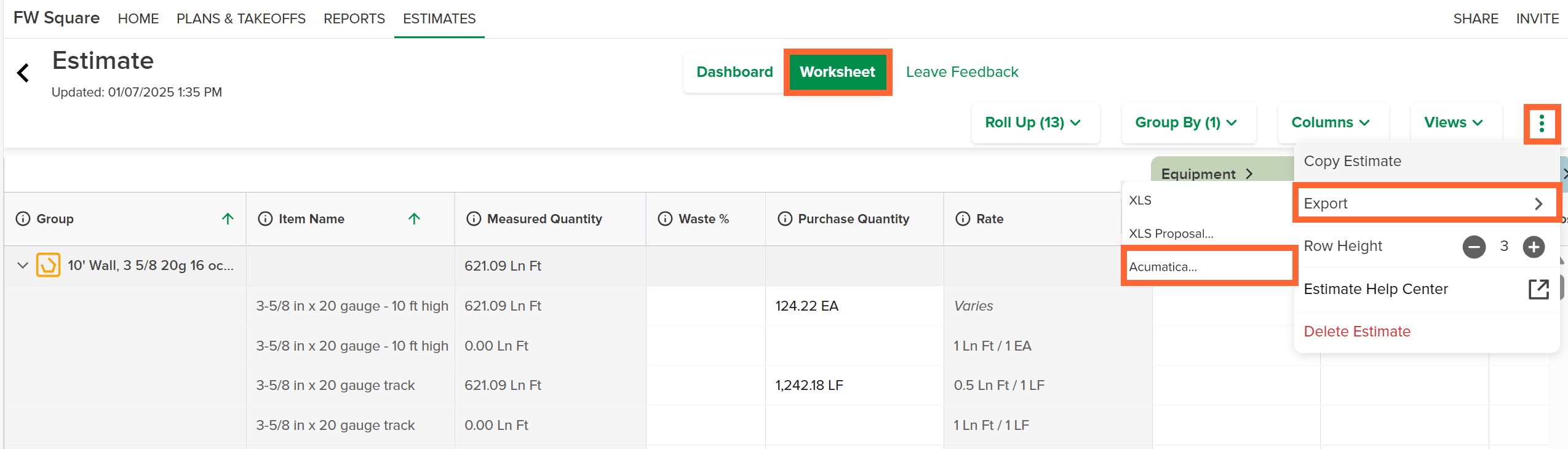
In STACK, open the Estimate Worksheet you want to send to Acumatica and click the Worksheet button at the top of the estimate.
Click the three dots on the right side of the estimate toolbar at the top of the worksheet.
Select Export on the menu that appears and select Acumatica.
NOTE
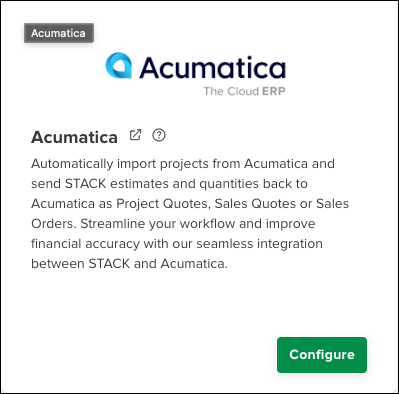
If Acumatica is not shown, click Set up a new connection to set up the connection/integration. See Connect Your Acumatica and STACK Account for instructions.
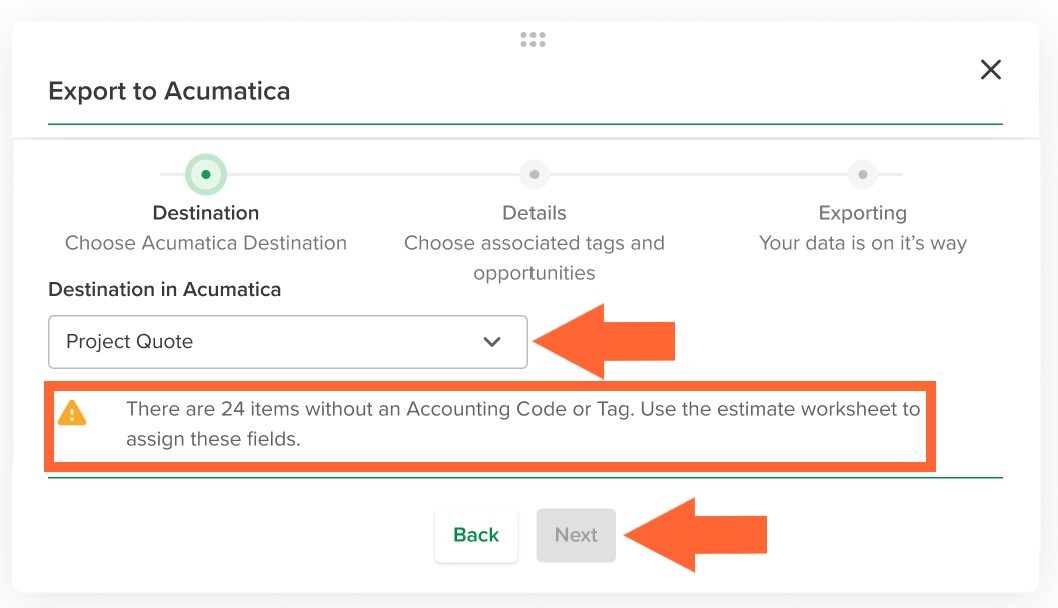
Click on the Destination in Acumatica dropdown to select whether to create a Project Quote or Sales Quote in Acumatica.
NOTE
You will see a ! warning message under the dropdown if information on the Estimate Worksheet is not set up properly for a successful export. To avoid a failed export, address any issues in the warning before proceeding.
If you see a ! warning message that your customization package is not supported, you will need to do a quick update before proceeding. E.g., The version of your customization package is not supported. Please update your customization package.
See Update the Stack Customization Package for instructions.For Project Quotes, use the Project Quote Template dropdown to select a template from the list or choose Default Acumatica Template. If no dropdown is shown, no templates are available.
Click Next at the bottom of the screen.
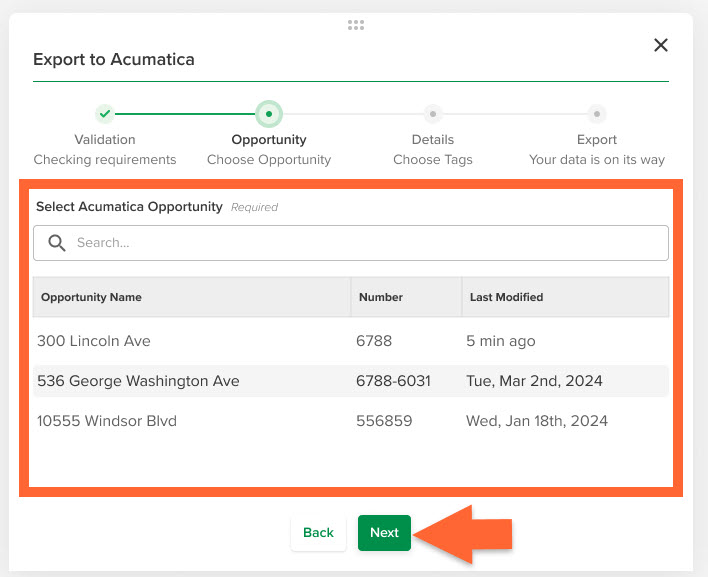
Under Select Acumatica Opportunity, locate and click the Acumatica Opportunity/Project where the Estimate Worksheet data should be exported.
TIP
You can use the search bar or scroll to find the Opportunity/Project on the list.
*Only Active Opportunities will be available for selection.Click Next at the bottom of the screen.
NOTE
This step is not required if you chose to create a Sales Quote in step 4.
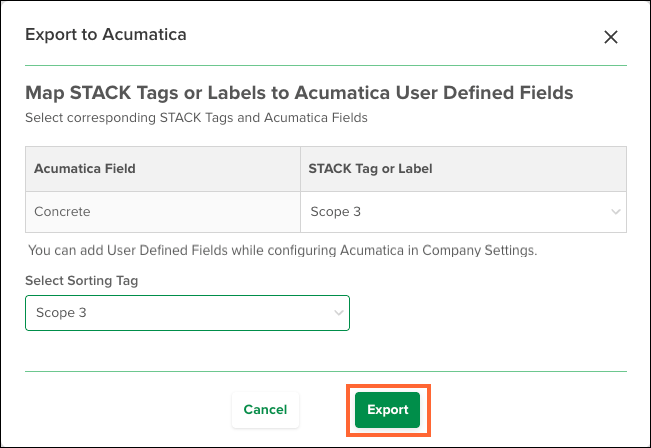
For Project Quotes, use the STACK Tag dropdowns for each Acumatica field listed to select the corresponding STACK Takeoff Tag.
Any field marked with an asterisk (*) is required.
The Task field always appears in the list.Other Acumatica fields appear only if User Defined Fields have been configured in Acumatica.
See Connect Your Acumatica and STACK Account for details on adding Acumatica User Defined Fields.
Click Next at the bottom of the screen to begin the export.
A message appears in the Notifications section (bell icon) on the main navigation bar when the export completes successfully or if the export fails.
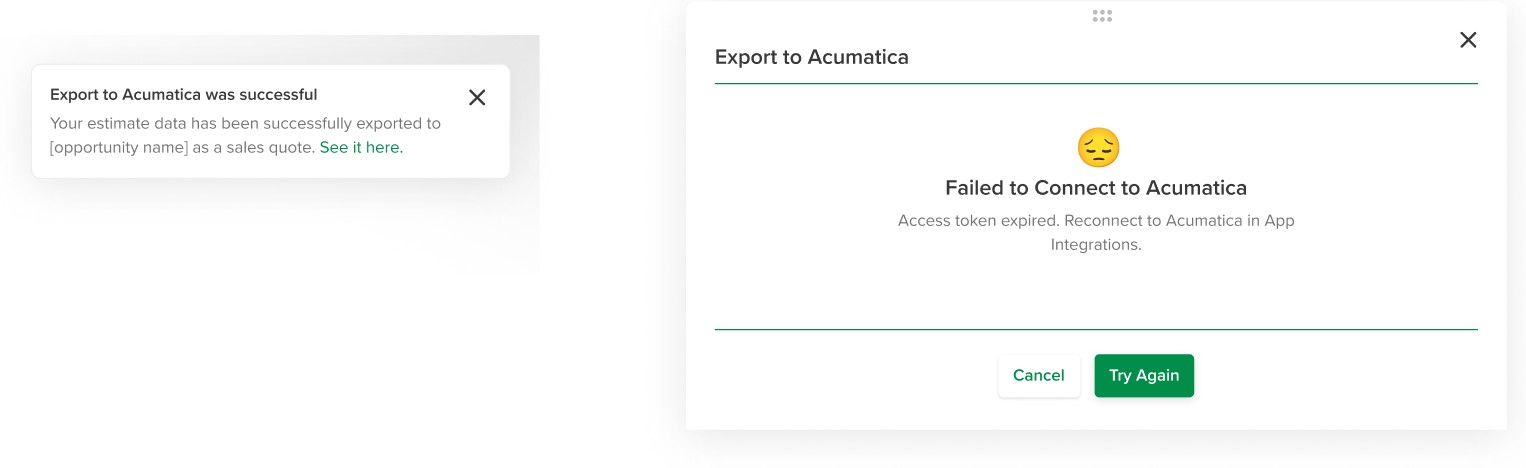
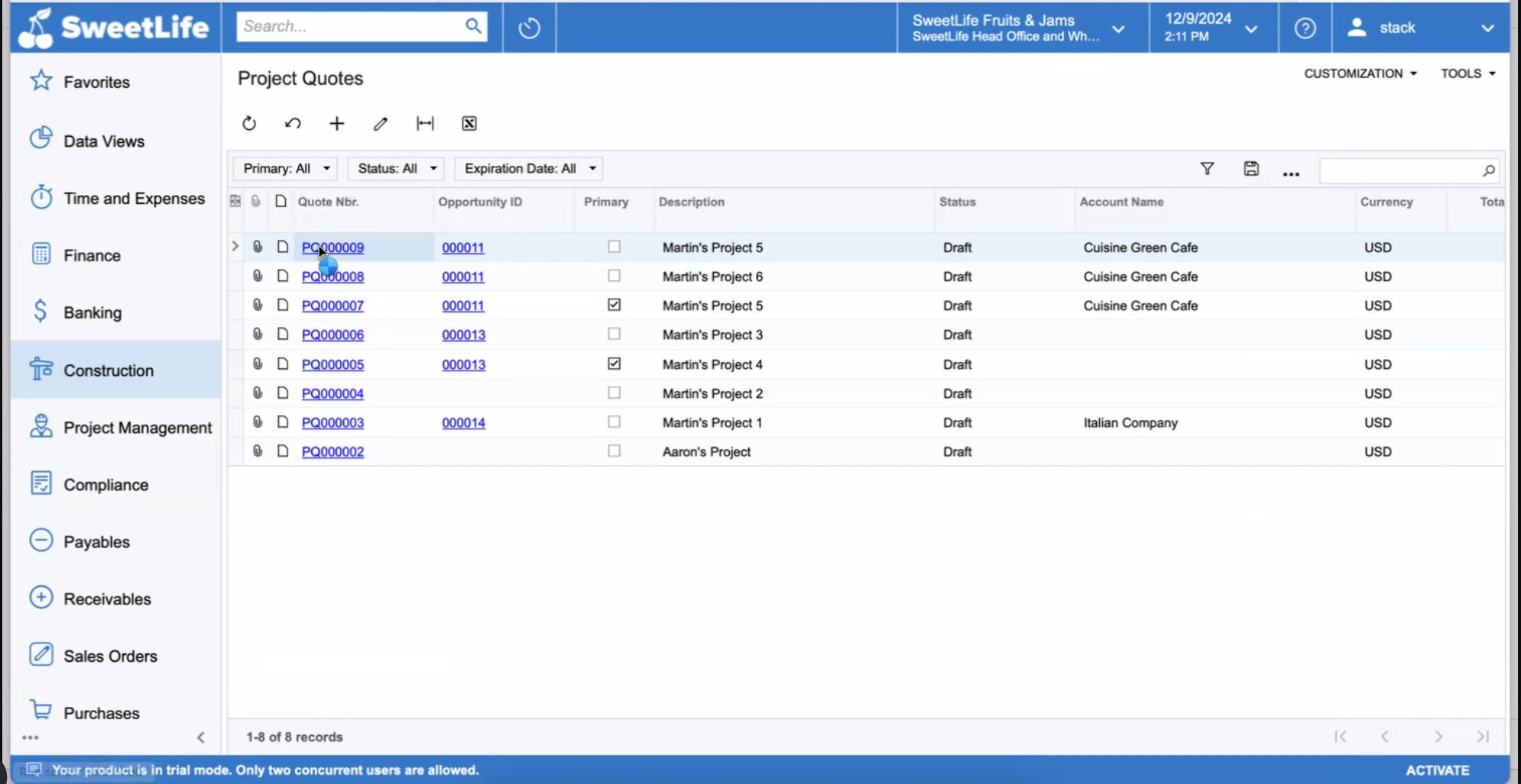
Once the export is complete, open the Project Quote or Sales Quote in Acumatica to continue working as needed.
What Data is Exported
During export, the following STACK data points are mapped to the corresponding Acumatica data points:
STACK Data | Acumatica Data |
|---|---|
Item Number | Inventory ID |
Purchase Unit | UOM |
Cost Type | Accounting Group |
Accounting Code | Cost Code |
Unit Cost + Markup + Distributed Costs | Unit Cost |
Unit Cost + Markup + Distributed Costs | Unit Price |
Takeoff Quantity | Quantity |
Takeoff Tag Value | Task ID |
When a Quote is created in Acumatica from a STACK Estimate Worksheet export, the fields noted below are populated by STACK.
Quote Information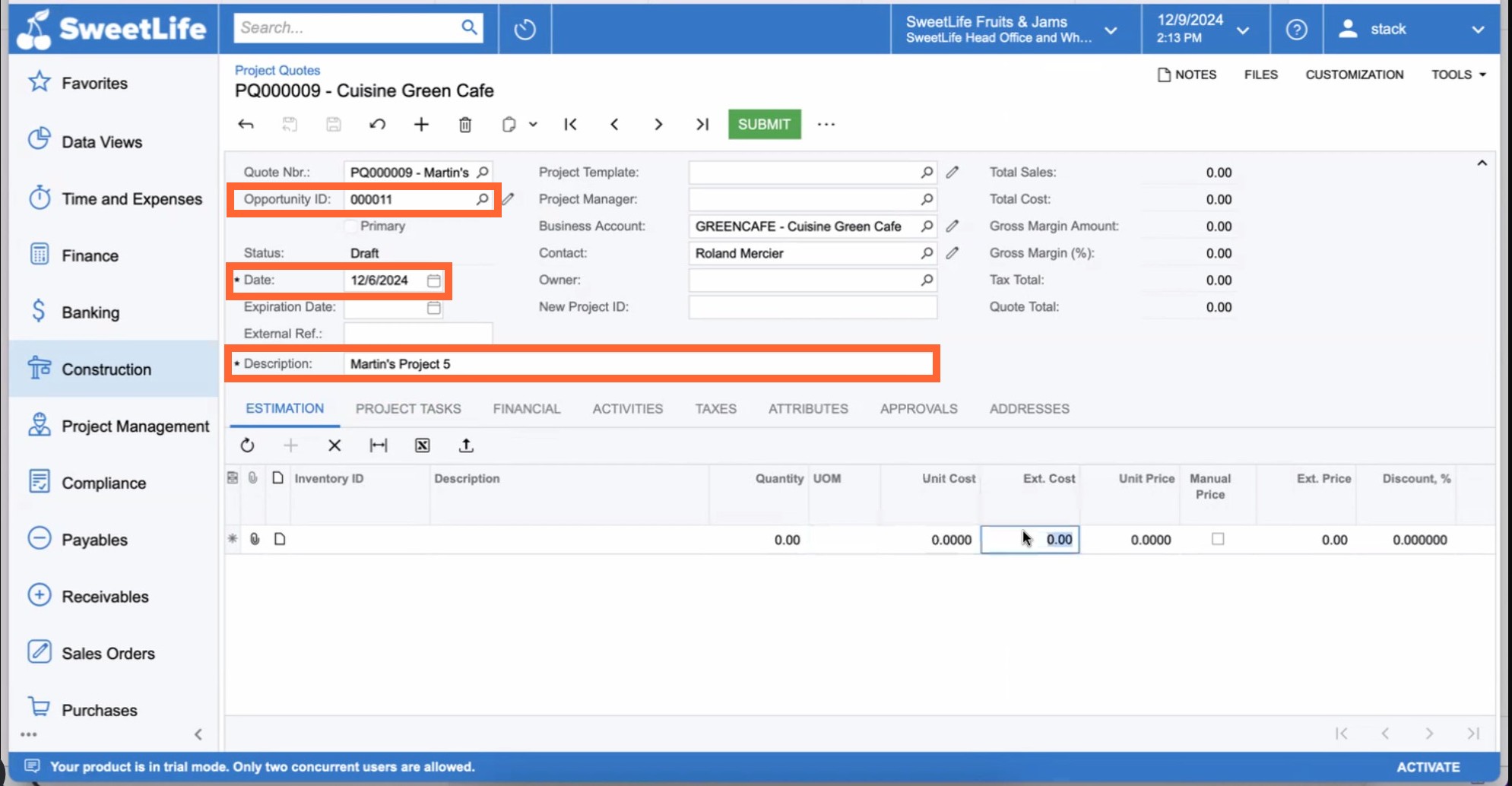
Opportunity ID = The Project/Opportunity that you select on the Destination in Acumatica screen as part of the export process in STACK (step 4 in the instructions above).
Description = STACK Estimate Worksheet Name
Date = Date of export from STACK
Any other info that you see in the top area of the Quote is populated based on info that has been entered in Acumatica for the Project/Opportunity.
Estimation Tab
.jpg)
STACK will create one line on the Estimation Tab for every line item exported from the STACK Estimate Worksheet, and populate the following fields:
Record Note = STACK Line-Item Note
(The Record Note is accessed by clicking the Note icon on each line. This only populates if there is a Line-Item Note in STACK.)
Inventory ID = STACK Item Number
Description = STACK Item Name
Quantity = STACK Takeoff Quantity
UOM = STACK Purchase Unit
Unit Price = STACK Unit Cost
Acumatica Project Task = STACK Takeoff Tag Value
Cost Code = STACK Accounting Code
Cost Account Group = STACK Cost Type
The data in other columns on the Estimation Tab is calculated by Acumatica based on the STACK-populated data fields noted above.
NOTE
No line item will be created in Acumatica if the Cost Type in STACK had an empty Unit Cost.
Project Tasks Tab
For Project Quotes, STACK will create a Task for each Takeoff Tag Value associated with the Takeoff Tag you select as part of the export process in STACK (step 6 in the instructions above). STACK will populate the Project Task Number, Description, and Type fields.
The Project Task Number is based on the order of the Takeoff Tag Value within the Takeoff Tag in STACK.
Description = STACK Takeoff Tag Value name (30-character limit)
The task Type will always be Cost and Revenue Task.
NOTE
If you created a Sales Quote and selected a STACK Tag to use as an Acumatica Task during the export process, the tasks will be part of the line item in Acumatica, they will ne be displayed on Tasks Tab.
Related Articles
Connect Your Acumatica and STACK Account
Best Practices to Use Acumatica with STACK
Create a Project from an External Source
Export Item Quantities to Acumatica
Create, Edit, or Delete Custom Items
Estimate Worksheet Overview
Takeoff Tags
Was this article helpful?