

Utilizar STACK con Buildertrend
- Impresión
- OscuroLigero
- PDF
Utilizar STACK con Buildertrend
- Impresión
- OscuroLigero
- PDF
Resumen del artículo
¿Te ha resultado útil este resumen?
Gracias por sus comentarios
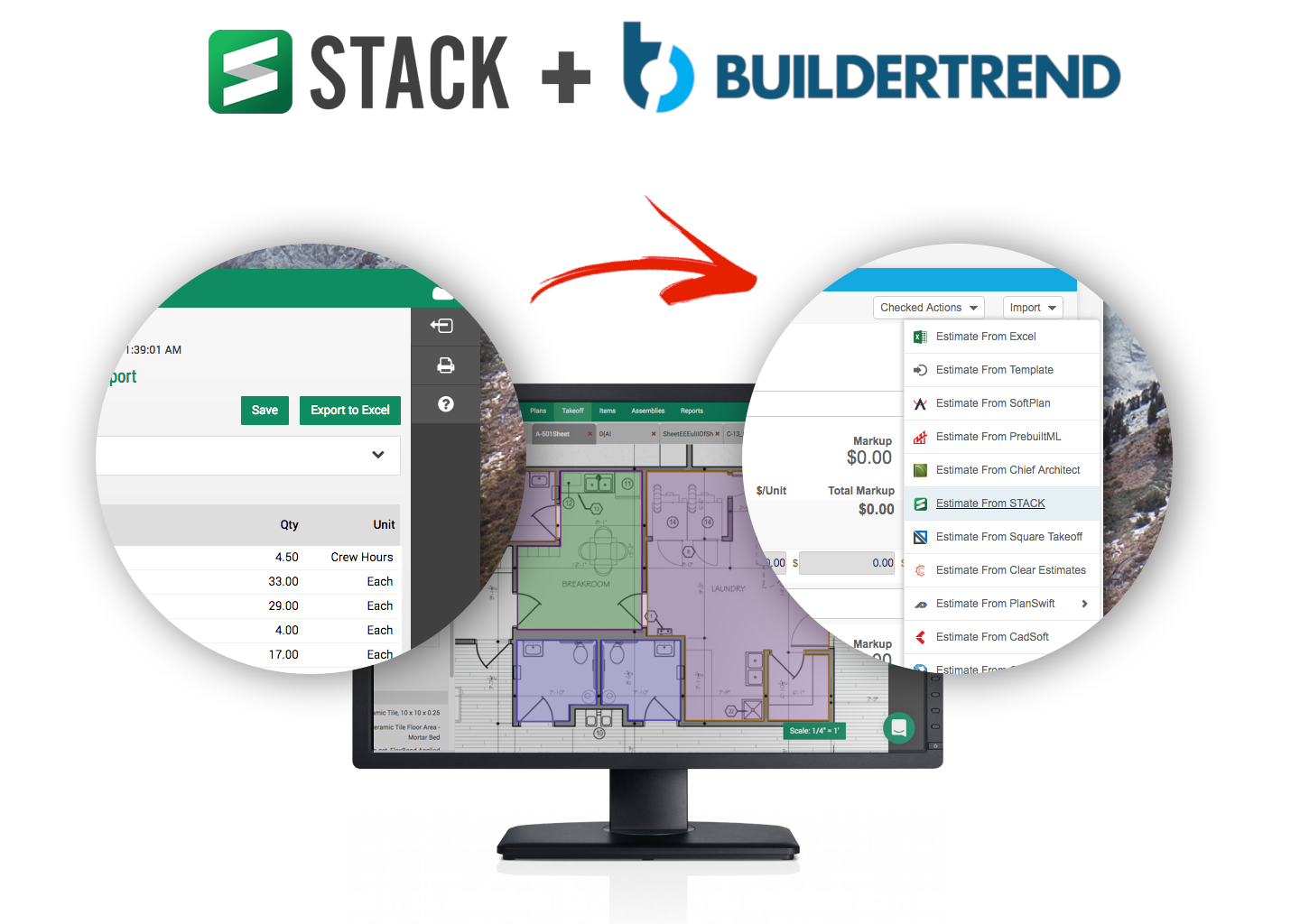
Buildertrend es una herramienta popular de comunicación, colaboración y documentación de proyectos para constructores y remodeladores de viviendas. Exporte sus medidas de materiales de STACK e impórtelos rápidamente a su presupuesto de Buildertrend.
¿Por qué exportar de STACK a Buildertrend?
- Realice un seguimiento del progreso (10% completado, 50% completo, etc.) hacia elementos específicos en su estimación
- Utilice su presupuesto STACK para generar una cotización para enviar a su cliente
- Realice un seguimiento del costo estimado frente al costo real, el costo estimado frente al monto facturado / pagado
- Visite www.buildertrend.com para obtener más información.
Aunque puede exportar cualquier reporte de STACK y abrirlo en Buildertrend mapeando las columnas correctamente, la integración descrita aquí requiere una suscripción a STACK Pro.
Prerrequisitos
Para que la integración de STACK <> Buildertrend funcione sin problemas, querrá que el campo Código de contabilidad (Accounting Code) en sus artículos de STACK coincida con los códigos de contabilidad que está utilizando en Buildertrend. Puede configurarlo usted mismo o ponerse en contacto con su representante de cuenta STACK para obtener ayuda en la transferencia de sus códigos de contabilidad de Buildertrend a su lista de artículos STACK.
Generar un Reporte de Costo de Artículo
- Después de completar una medida en STACK, abra el Reporte de Costo de Artículo.
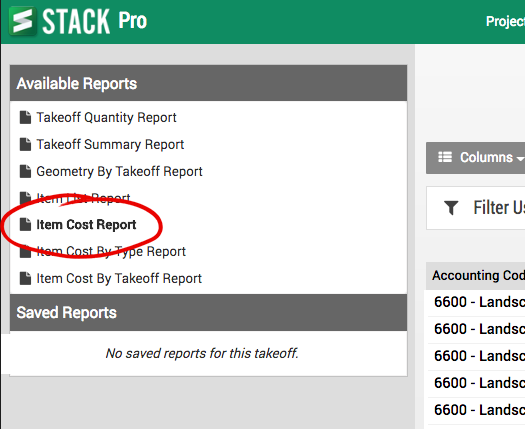
2.Asegúrese de que el Reporte de costo del artículo no esté agrupado (haga clic en el botón Agrupaciones y asegúrese de que no haya nada marcado)
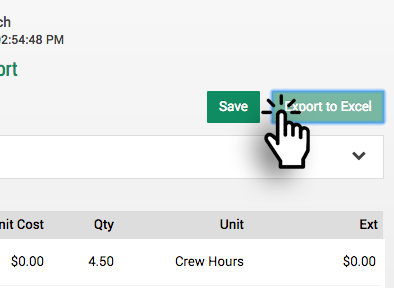
3. Exporte el Informe de costo del artículo a Excel.
Importar a BuilderTrend
4. Abra BuilderTrend y seleccione Estimaciones en el menú desplegable Financiero.
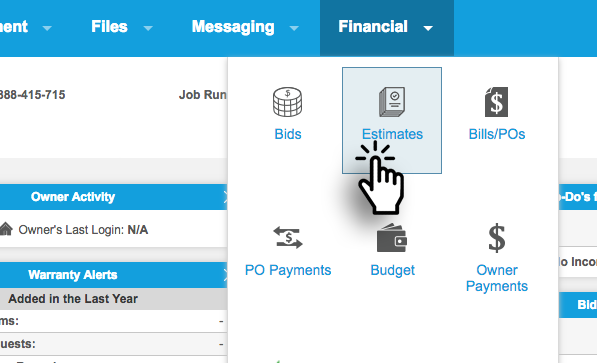
5. Importe su reporte de costo de artículos de STACK en su estimación de Buildertend.
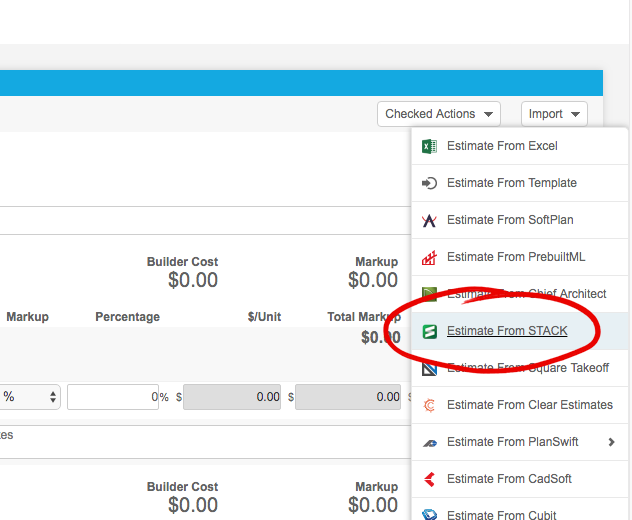
Mapear las columnas
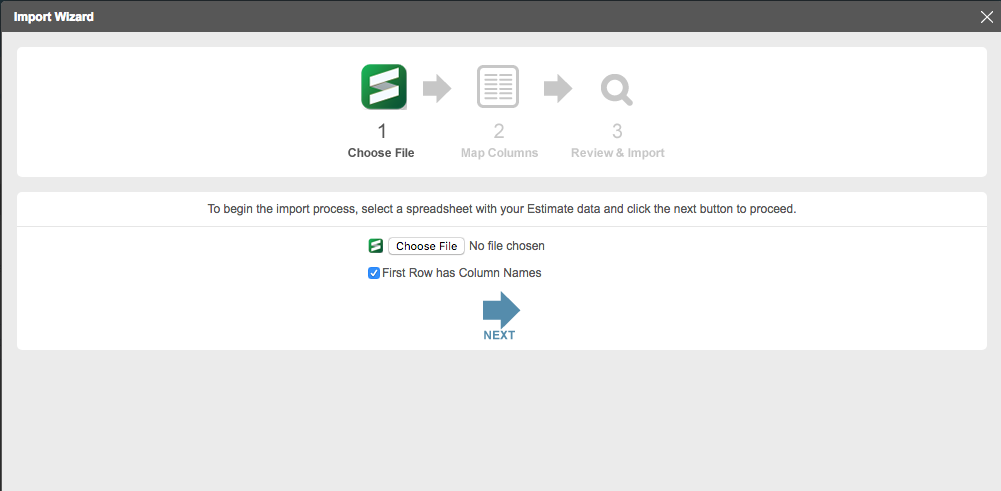
6. Elija ItemCostReport.csv de su carpeta de descargas.
7. Mapee sus columnas de STACK para que coincidan con Buildertrend.
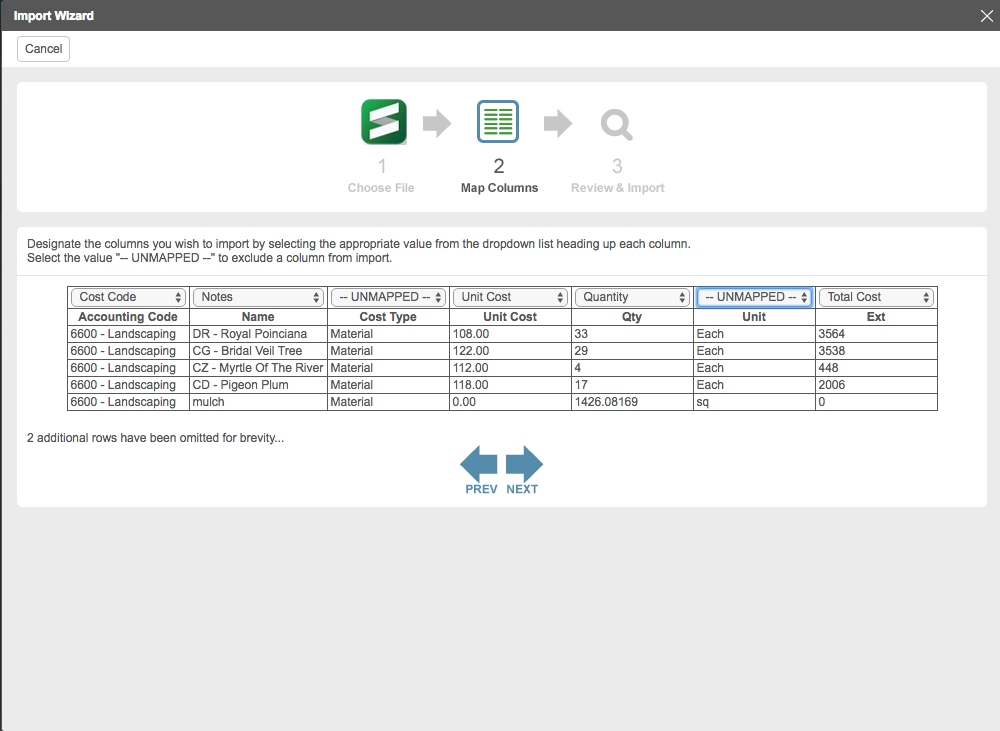
STACK Columns => Columnas de Buildertrend
Código de Contabilidad => Código de Costo (Accounting Code => Cost Code)
Nombre => Notas (Name => Notes)
Tipo de costo => No asignado (Cost Type => Unmapped)
Costo Unitario => Costo Unitario (Unit Cost => Unit Cost)
Cantidad => Cantidad (Qty => Quantity)
Unidad => No asignado (Unit => Unmapped)
Ext => Costo Total (Ext => Total Cost)
8. Verifique las cantidades no asignadas.
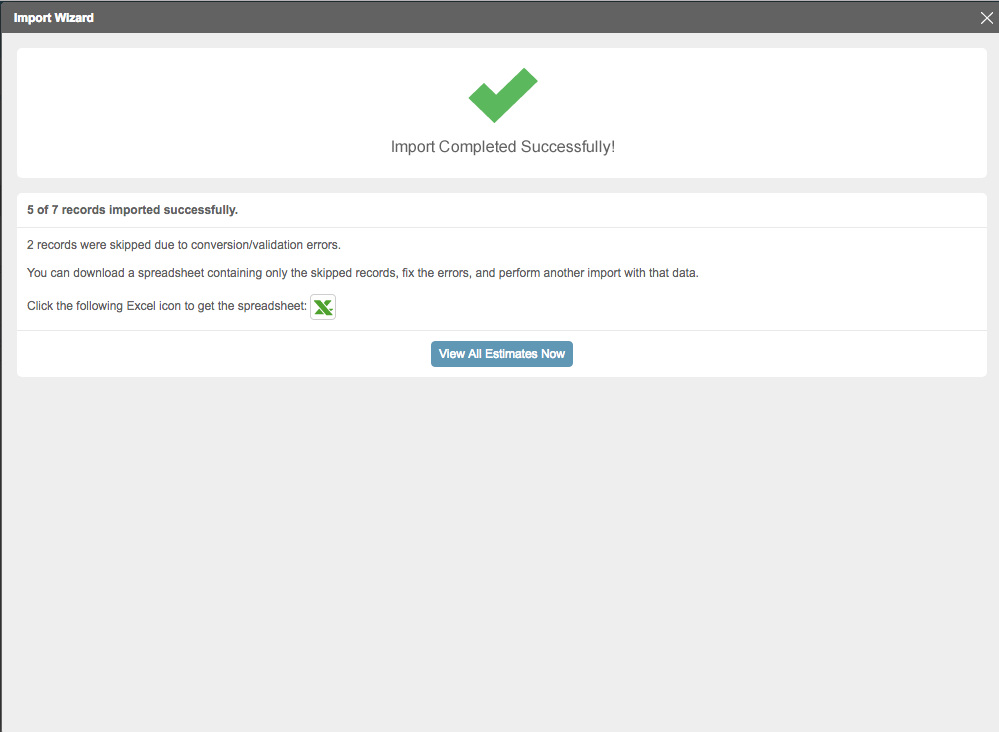
9. Vea las cantidades de STACK en Buildertrend
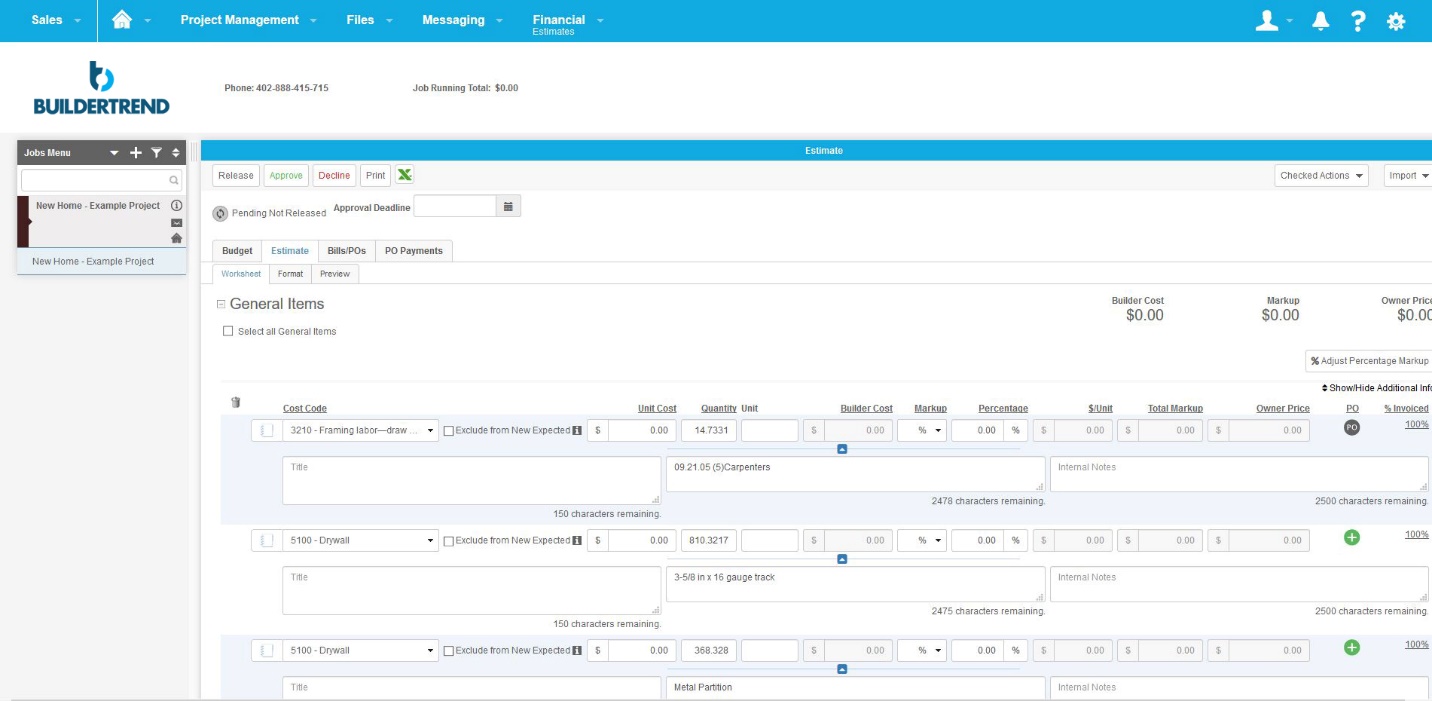
Preguntas Frecuentes
Recibo un error al importar mi reporte de costo de artículo STACK a Buildertrend.
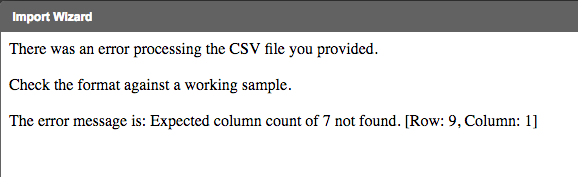
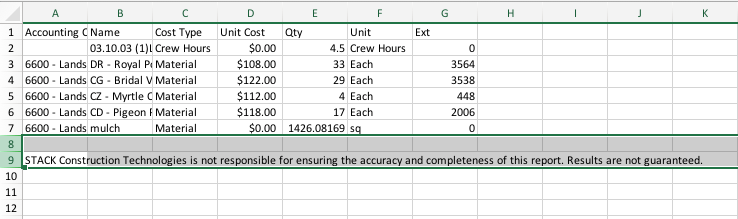
Abra el archivo csv en Excel y elimine el mensaje de responsabilidad en la última fila y vuelva a guardar el archivo.
¿Qué columnas se asignan entre STACK y Buildertrend?
STACK Columns => Columnas de Buildertrend
Código de Contabilidad => Código de Costo (Accounting Code => Cost Code)
Nombre => Notas (Name => Notes)
Tipo de costo => No asignado (Cost Type => Unmapped)
Costo Unitario => Costo Unitario (Unit Cost => Unit Cost)
Cantidad => Cantidad (Qty => Quantity)
Unidad => No asignado (Unit => Unmapped)
Ext => Costo Total (Ext => Total Cost)
Mis valores STACK Ext provocan un error.
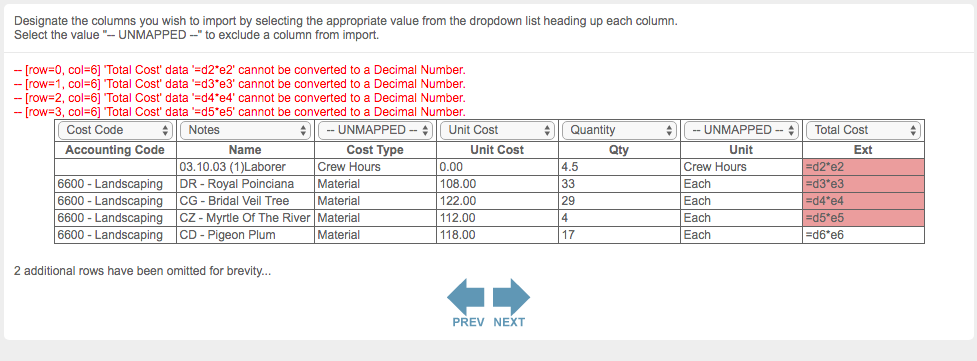
Abra el archivo csv en Excel y vuelva a guardar. Esto convertirá las fórmulas a valores.
¿Te ha sido útil este artículo?