

Labels
- Impresión
- OscuroLigero
- PDF
Labels
- Impresión
- OscuroLigero
- PDF
The content is currently unavailable in Spanish. You are viewing the default English version.
Resumen del artículo
¿Te ha resultado útil este resumen?
Gracias por sus comentarios
Labels allow you to group or filter your takeoff data any way you like. Add labels to each measurement to group by CSI division, room, building, floor, elevation, phase, or any other work breakdown structures your workflow requires. You can group or filter your report and estimate data by the label values you've created.
It's not uncommon to have hundreds of takeoffs for a single project. This can make it hard to quickly find the takeoff you need at any given moment.
Takeoff Tags allows you to create custom categories to organize takeoffs within a project. You can create tags based on floor, phase, CSI code...whatever works for your team. Then you can group your takeoff list by the tags (like folders) to make it easier to find takeoffs.
They can also be used to organize and view data in the Estimate Worksheet.* You can Roll Up, Filter, Group By, and assign Other Costs based on Labels. This can be very useful, especially if you use CSI codes.
Takeoff Tags work a lot like Labels. The main difference is that when you assign Takeoff Tags, they are applied to every measurement of that takeoff whereas Labels can be unique to each individual measurement.
TIP: Consider Takeoff Tags
Create Project Labels
These labels will only be available in the project in which they are created.
TIP: For best performance, we recommend creating no more than ten Labels (unlimited values per label) per project.
- Open or create a takeoff.
- Click Start Measuring.
- Scroll down to the Labels section on the left panel.
- Click the Add Label button.
- Type in a Label Name (50 character limit). E.g., Floor, Building, Elevation
- Add Label Values (options):
- Type a name in the Label Values field (50 character limit). E.g., 1, 2, east, west, Room 101, Room 201
- Press enter on your keyboard or click the + to the right of the field to add additional Label Values.
TIP: You can click on the dots to the right of a Label Value and drag it to change the Label Values list order.
- Click Save. (names can be edited, deleted, or organized as needed)
Repeat steps 4-7 to create additional Labels as needed.
*You can retroactively apply labels to your measurements. Just use the Edit tool to single or multiselect your measurement(s) and click Finish Measuring once the labels are applied.
Create Company Labels
These labels will be available for use in all projects.
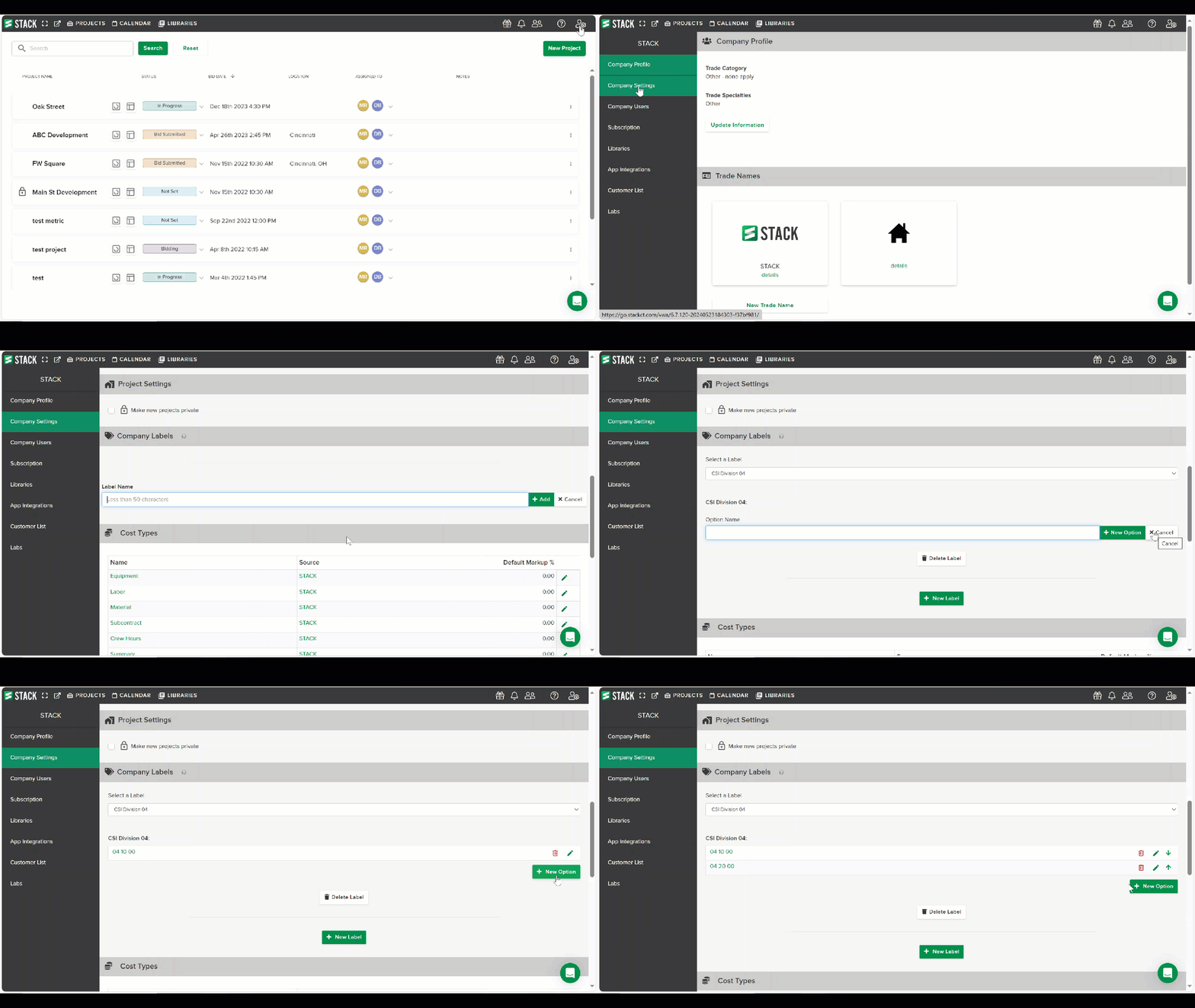
- Click the Settings icon in the upper right corner of your screen and select Account Settings.
- Select Company Settings from the left and scroll down to the Company Labels section.
- Click the + New Label button.
- Type in the Label Name (50 character limit). E.g., Floor, Building, Elevation
- Click the green + Add button.
- Click the green + New Value button.
- Type in the Option Name (50 character limit). E.g., 1, 2, East, West, Room 101
- Click green + New Value button.
(Repeat step 6 for each option you want to add.)
TIP: Values are listed in the order they are added. To change the Values list order, click the arrow to the right of a Value to move it up or down the list.
Edit or Delete a Company Label
You can add or delete Values, change the Value list order, edit Value names, or delete a Company Label if needed.
NOTE: If a company label has already been added to measurements in existing projects, Deleting or editing the label will not change the label information applied to those measurements.
- Click the Settings icon in the upper right corner of your screen and select Account Settings.
- Select Company Settings from the left and scroll down to the Company Labels section.
- Click the Select a Label dropdown and select the Label you want to edit or delete.
- Make your desired edits.
- To change an Option Name:
Click the Edit icon (pencil) to the right of the value, type in a new name, and click the checkmark. - To delete an Value:
Click the Trash icon to the right of the option, click Delete to confirm. - To add a new Value:
Click the +New Value button, type in the Option Name, and click the green + New Value button. - To change to Value list order:
Use the arrow to the right of a Value to move it up or down the list.
OR
Delete the Label. - Click the Delete Label button, then click Delete to confirm.
- To change an Option Name:
Add a Label to a Measurement
Related Articles
Account Settings
Creating and Editing Takeoffs
Takeoff Tags
¿Te ha sido útil este artículo?