

Change Measurements to Metric
- Print
- DarkLight
- PDF
Change Measurements to Metric
- Print
- DarkLight
- PDF
Article summary
Did you find this summary helpful?
Thank you for your feedback!
The default measurement system in STACK is imperial, but you can easily change individual projects or your account’s default measurement system for all new projects to metric.
NOTE: Items and assemblies from STACK and other supplied catalogs (like BNi or 1build) use imperial measurements. Any items or assemblies you add to your takeoff from those catalogs will display in imperial units, even if the project or default measurement system is set to metric.
Change Measurement Unit for a Project
You can easily switch a project’s measurements to metric or imperial at any time.
.gif)
Navigate to project for which you want to change the measurement unit.
Click the HOME tab.
Go to the Project Settings tile.
Check the the following boxes:
Quantify in Metric: Quantify in metric controls how your takeoff quantities are calculated and displayed. When this checkbox is selected, STACK converts all resulting quantities into metric units (e.g., m, m², m³), regardless of the measurement scales available.
This setting does not affect which scales you can choose—it only changes the units used in your quantity results.
Mesure in Metric: Measure in metric controls which measurement scales are available when performing takeoffs.When this checkbox is selected, you will only see metric scales (e.g., 1:100, 1:50).
When it is not selected, you will only see imperial scales (e.g., 1/8” = 1’, 1/4” = 1’).
This setting determines how you measure, not how quantities are displayed.
Change Default Measurement System for Your Account
NOTE: Changing the default measurement system will only affect projects created after the change, not existing projects. If you need to change the measurement system for an existing project, you can do so using the instructions above.
You must be an Account Owner or user with permissions to edit Account Settings to change the default measurement system for the account.
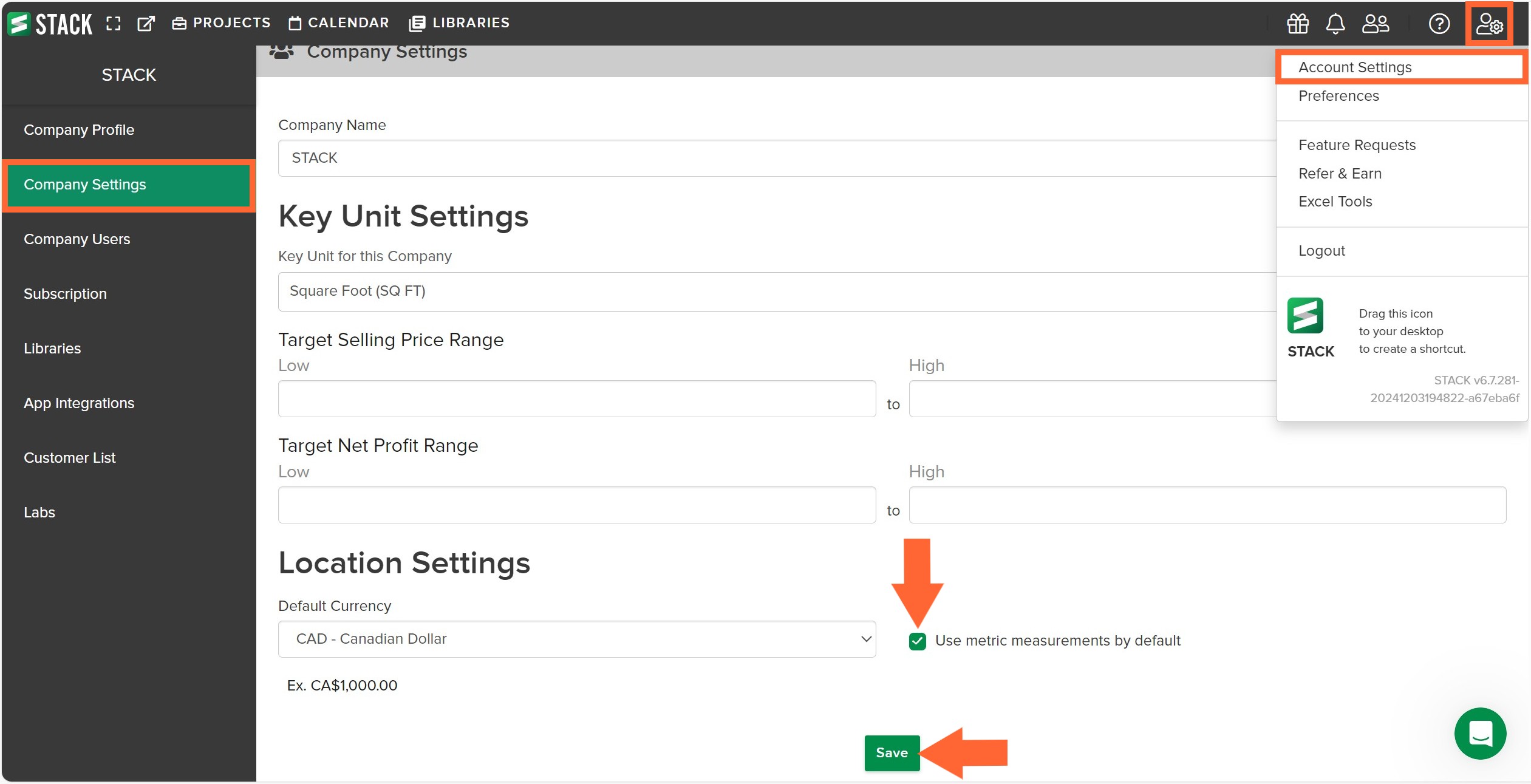
Click the Settings icon at the right of the main navigation toolbar.
Select Account Settings from the dropdown menu.
Click Company Settings on the left panel.
Scroll down to Location Settings and check the Use metric measurements by default box.
Click Save.
If you want to change the default back to imperial at any time, follow the same instructions but at Step 4, uncheck the Use metric measurements by default box.
Was this article helpful?